With Next Gallery Pro you can connect several cloud accounts – Nextcloud, OneDrive, Google Drive and S3, in any mix. Each account then works in one of two modes.
Standard or Group
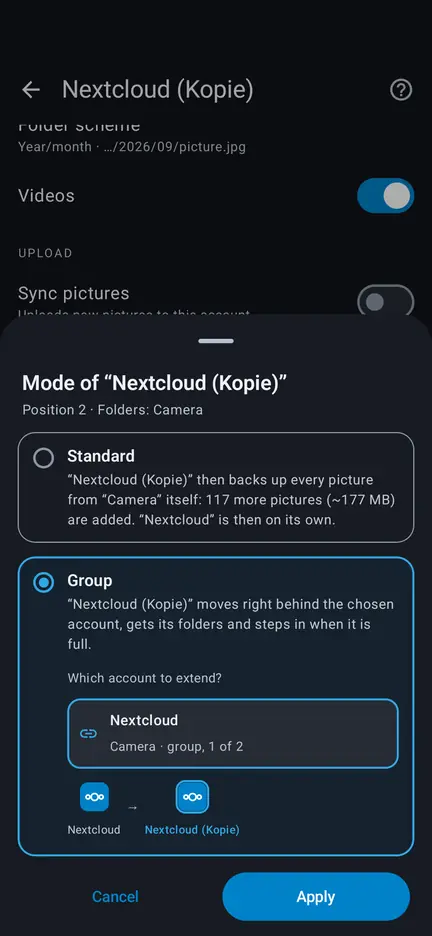
When you add a second account (or Clone an existing one to use another folder on the same server), Next Gallery asks how it should work:
Standard– the account gets its own, complete copy of the folders you choose for it. Two standard accounts are two independent backups.Group– the account takes over when the storage before it is full. Together the accounts behave like one large cloud: a picture is stored once, in whichever member had room.
The cloud group
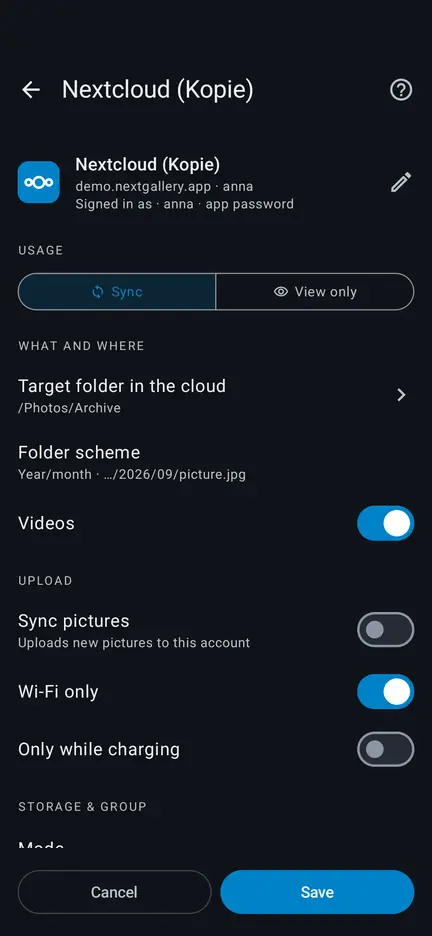
Accounts that extend each other form a cloud group. In the account settings, the Mode row under Storage & group shows whether an account stands alone or which one it extends. The folders on this device belong to the group's first account – the others take them over.
Storage limit decides how much of each storage the app may use: No limit (until the provider reports it full), a Percent of the storage, or a Fixed size. When a member reaches its limit, the next one takes the new pictures. Files are never moved between members afterwards.
A limit counts only what this account has saved itself. Other files on the storage don't count, and several accounts on one login each have their own limit. So a limit only says how much the app uses at most; it doesn't stop other files from filling the storage. If the target folder is on an external storage, Nextcloud often doesn't know its free space – the app then shows only the room up to the limit.
The group on the Cloud tab
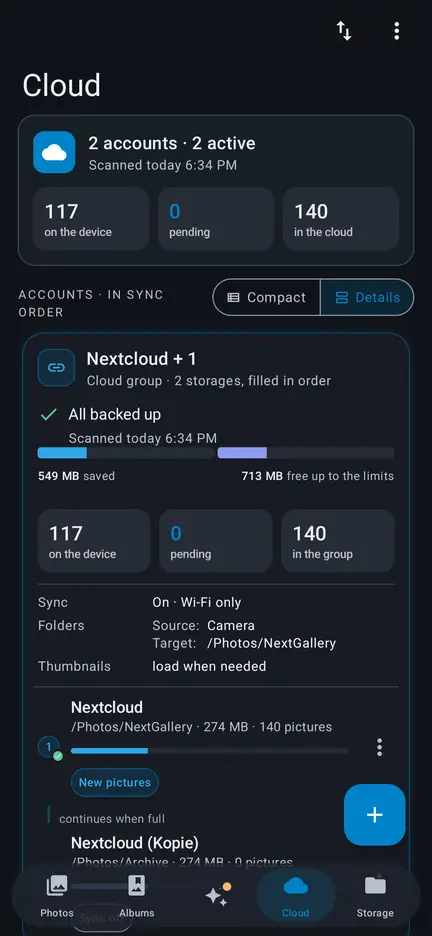
The Cloud tab shows a group as one card: a bar per member, the numbers of the whole group, and the members in their order. New pictures marks the member that receives uploads right now, Next the one that follows when it is full. The ⇅ button at the top (Change order) lets you reorder the accounts.