Help
How Next Gallery works – step by step, with pictures from the app itself.
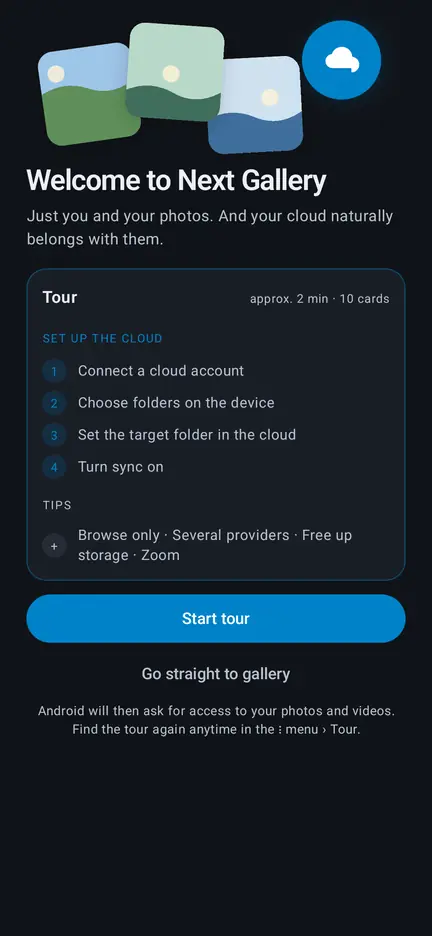
Getting around
The five tabs, the menu, the filter and the viewer – where to find what in Next Gallery.
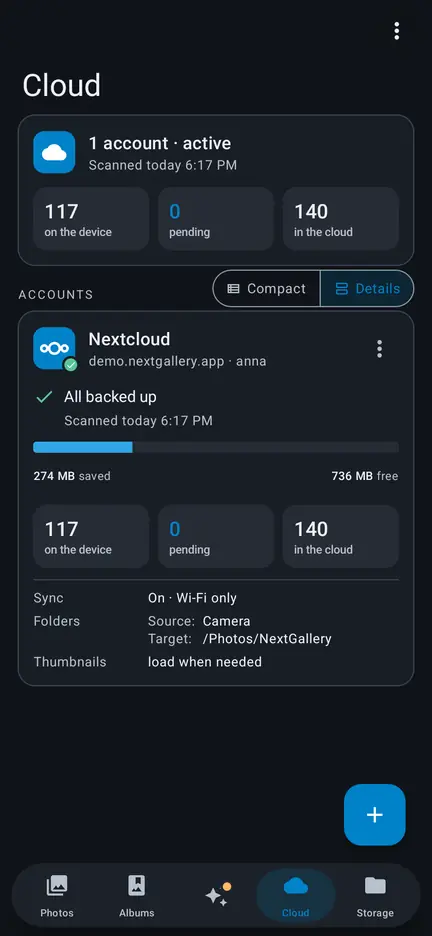
Connecting Nextcloud
Add your Nextcloud and follow the first scan and the upload.
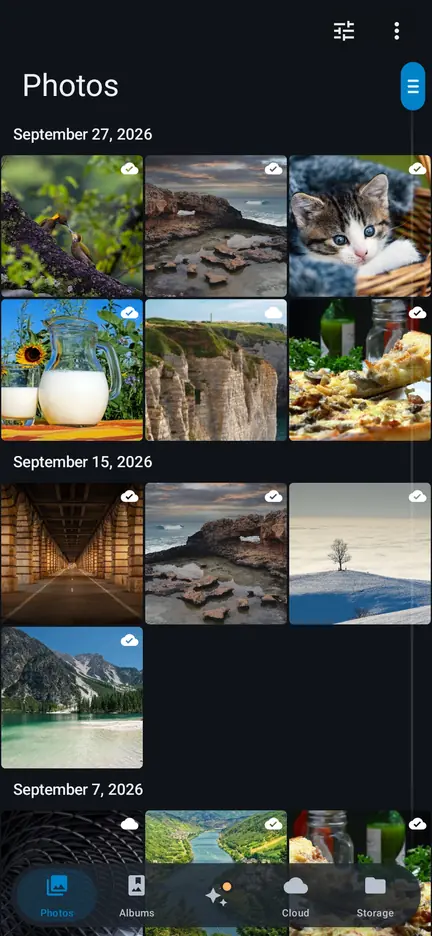
The Photos tab
Zoom levels, the fast scroller, the viewer, loading the original of a cloud photo, and the info panel.
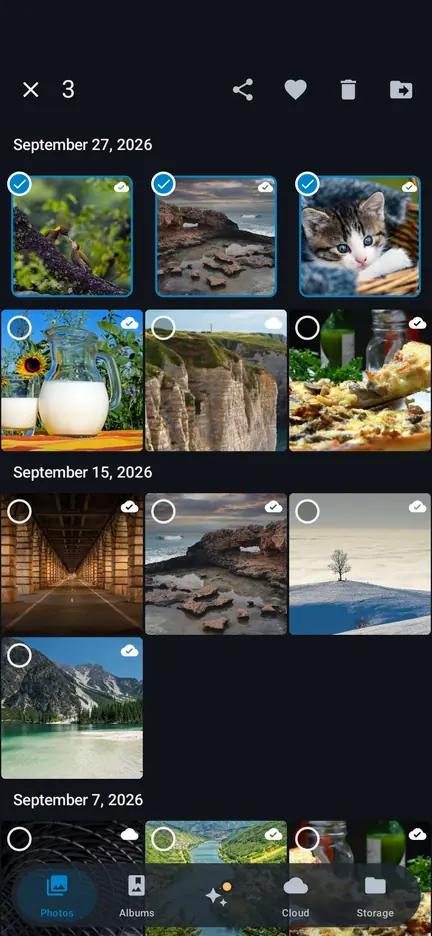
Working with pictures
Select several pictures, share, mark as favorite, delete from the phone or the cloud, copy or move into an album, rotate and edit.
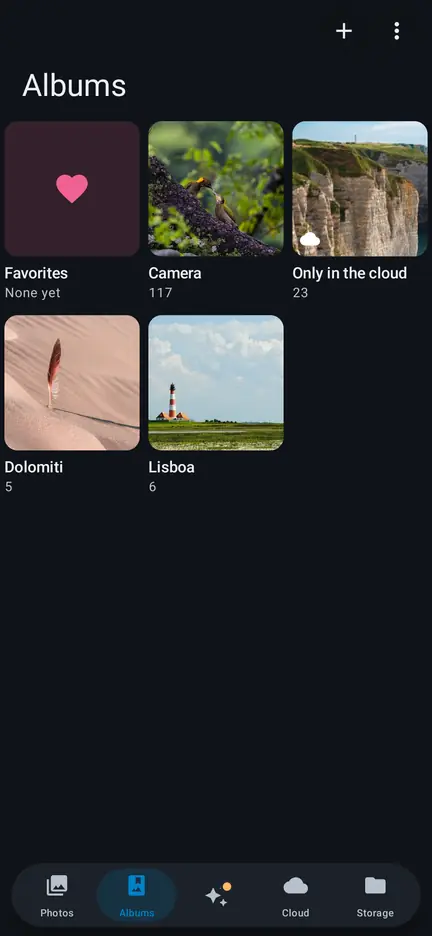
Albums and folders
Albums are the folders on your phone – create, fill, share, copy, rename and delete them, and decide which of them go to the cloud.
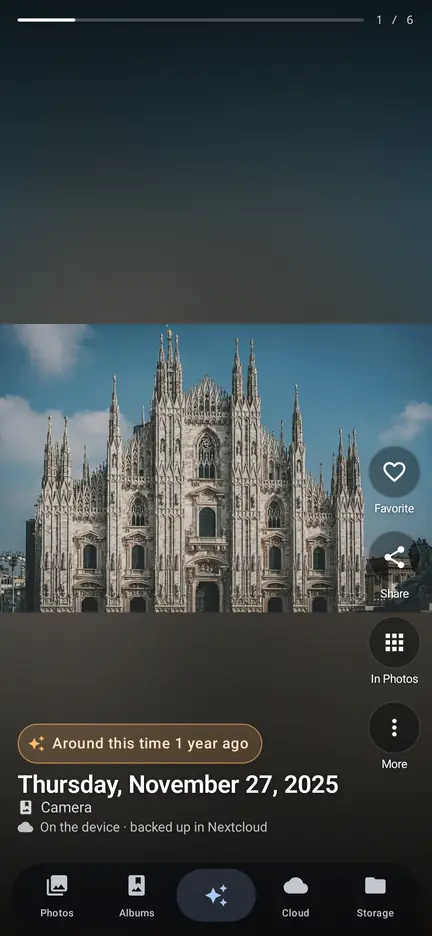
Memories
A new reel every day with your camera and cloud photos and videos from this day in earlier years – how it chooses, how to move through it and how to set it up.
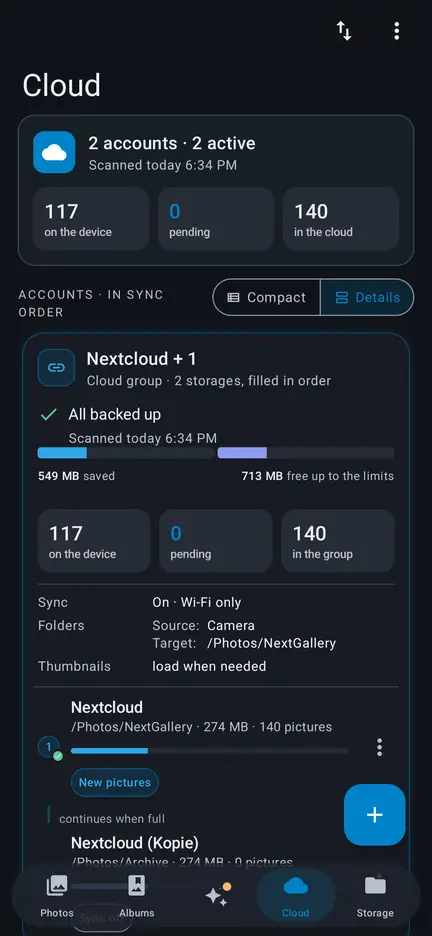
Standard or Group
The two modes of a cloud account: when Standard is the right choice and when a group is.
Several clouds and cloud groups
Back up to several clouds, or link them into a group that fills one storage after the other – with your own order and limits.
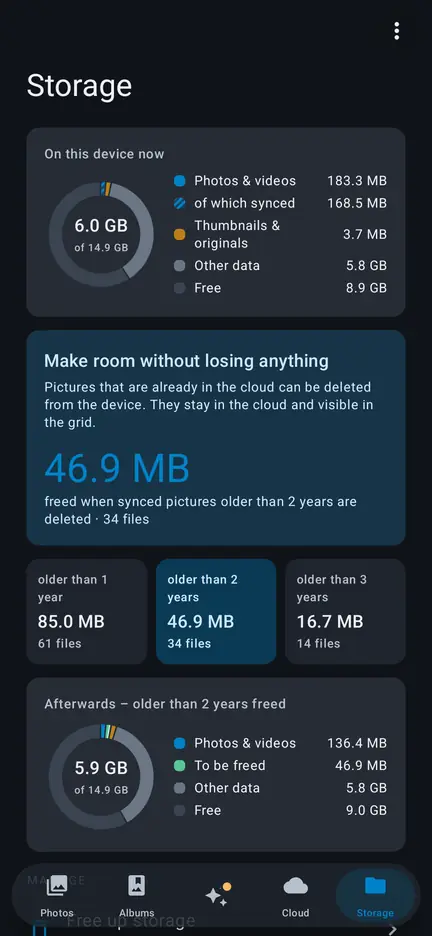
Storage and space
See what your photos take up, free space safely with pictures that are backed up, and manage thumbnails and loaded originals.
Didn’t find what you were looking for?
Write to us – easiest from the app under Settings › Help & feedback; version and device are filled in for you.
support (at) nextgallery.app