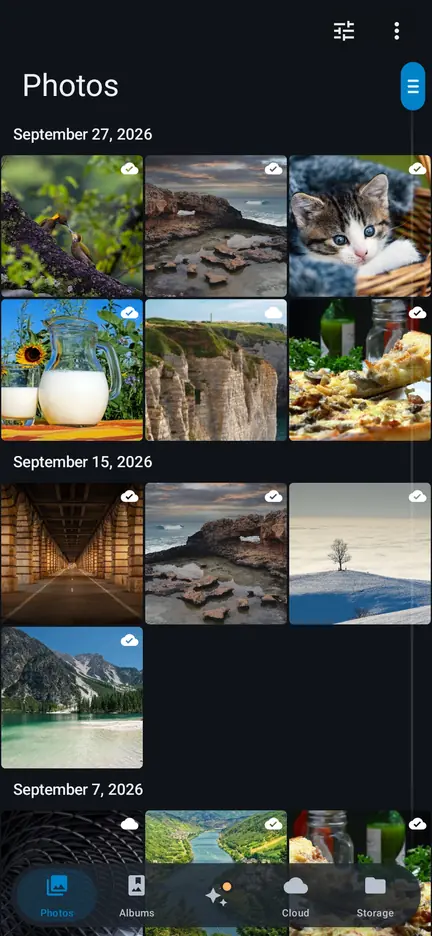
The Photos tab shows every picture – from the phone and from your clouds – in one grid, newest first.
Zoom: from one picture to a whole year
Pinch with two fingers to change how many pictures fit on the screen. Pinch together for more, apart for fewer:
- 3 and 4 columns – grouped by day, for browsing.
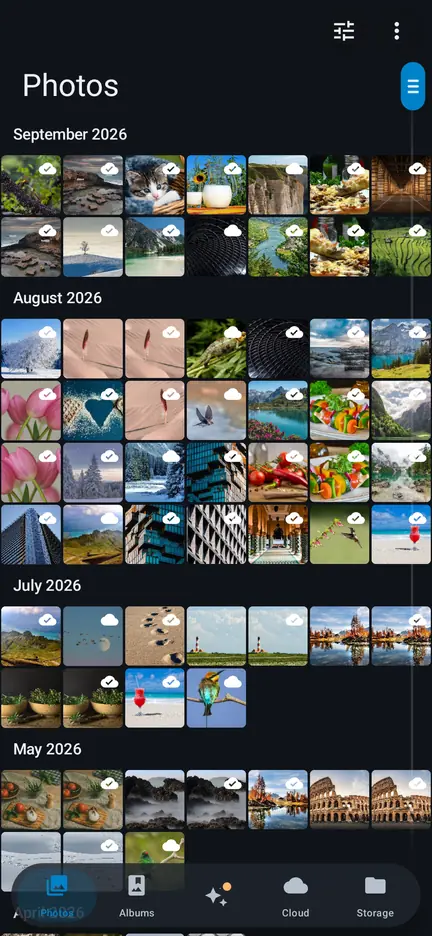
- 7 columns – grouped by month, for a quick overview.
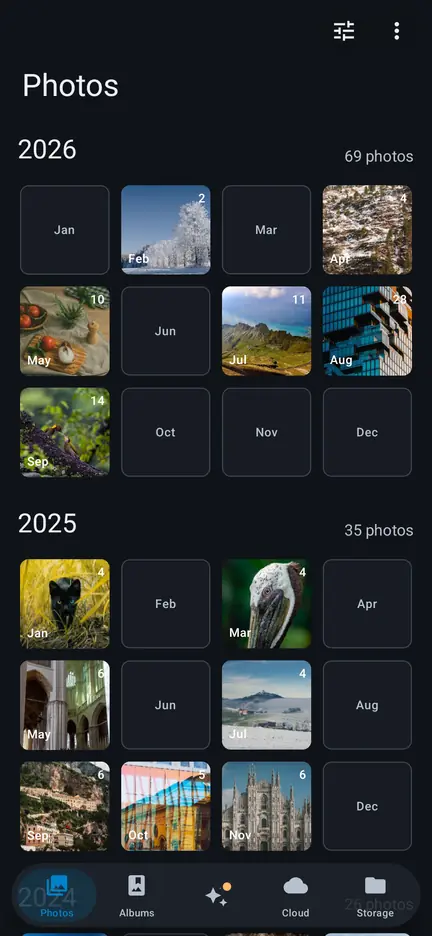
- Year overview – every year as twelve months, each with a cover picture and the number of photos. Empty months stay grey.
Next Gallery keeps your place when you zoom: the picture under your fingers stays in view.
To jump far back in time, drag the handle on the right edge of the grid: it scrolls through the months as fast as you move it.
The viewer
Tap a picture to open it. Swipe sideways to move to the neighbouring pictures; pinch to zoom in.
The cloud button in the bar tells you where the picture is – tap it for a short explanation:
- Cloud with a check mark – on this phone and in the cloud.
- Outline cloud – only in the cloud; you are seeing a preview from your server.
- Pulsing blue cloud – the original is being loaded.
- Filled cloud – only in the cloud, but its original is kept on this phone for a while.
A picture only on your phone has no cloud button.
Zoom in to load the original
For a picture that is only in the cloud, Next Gallery first shows a preview – fast, and sharp enough for the screen. As soon as you zoom in, it loads the original from your cloud, and the cloud button turns from outline to filled. Edit and Share load the original too.


How long a loaded original stays on the phone is up to you: Keep originals in the settings (see Storage and space).
The info panel
Details (the ⓘ button) opens the info panel: file name, date and time, size and resolution, and under Saved on every place the picture is stored – This device with its folder, and each cloud account with a check mark once it is backed up there. For a cloud photo whose original is kept on the phone, the line under This device says until when.
The panel stays open while you swipe to the next picture. Close it with the ⓘ button again or by pulling it down.