1. Add the account
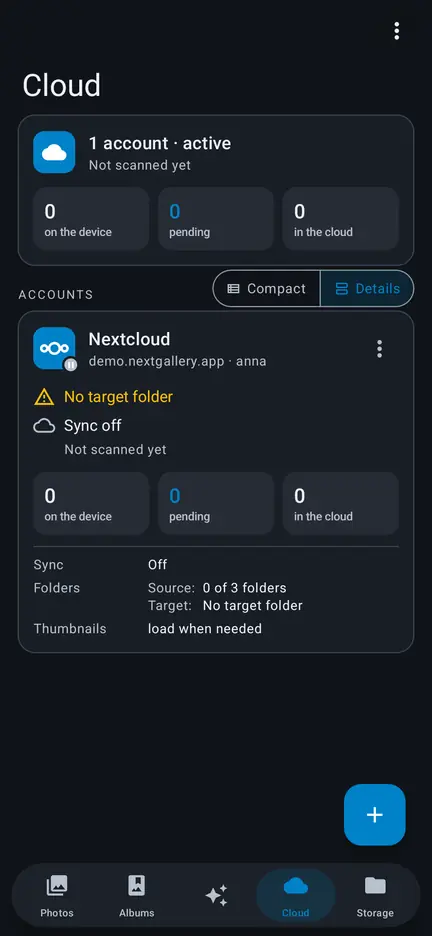
- Open the Cloud tab and tap +.
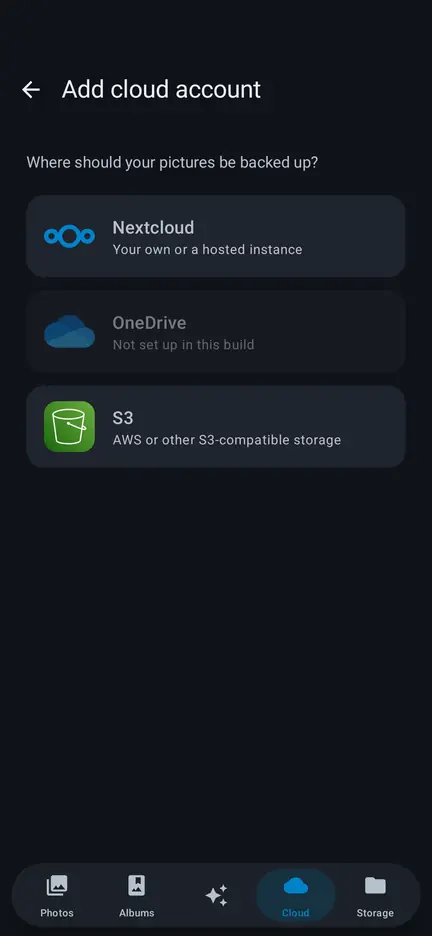
- Choose
Nextcloud. - Give the account a name (it is only shown in the app) and enter your server address, for example
cloud.example.com. - Tap
Sign in with browser.
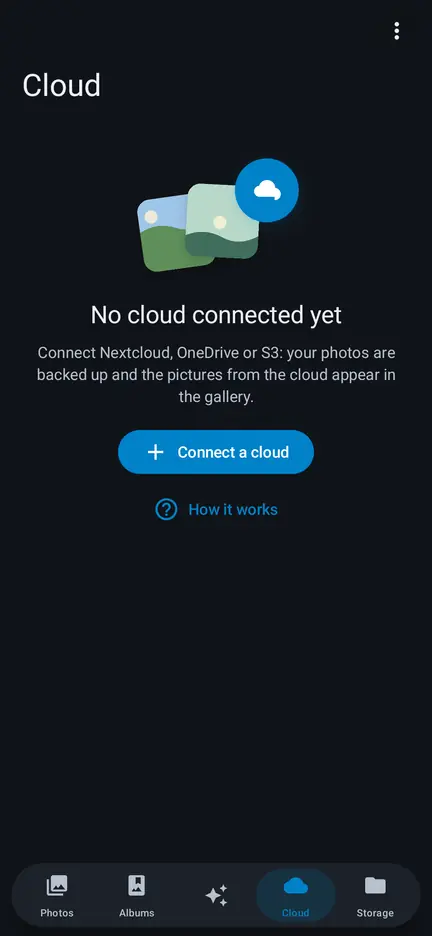
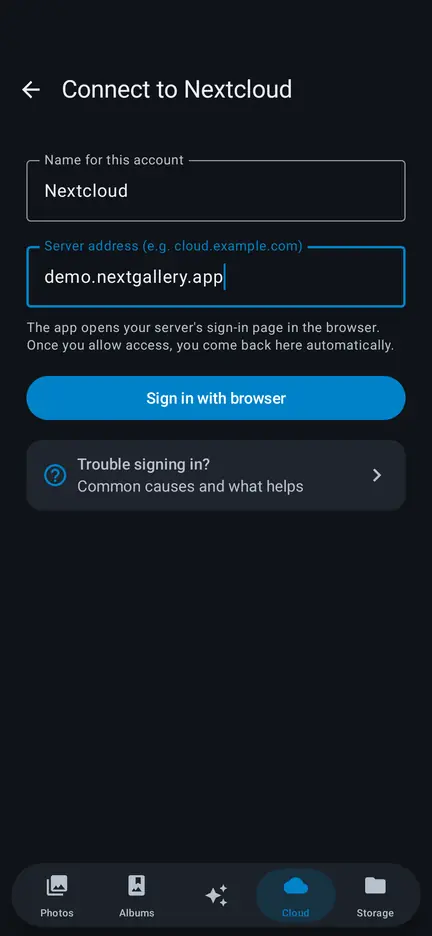
If signing in does not work, Trouble signing in? below the button lists the usual causes: an address that misses a sub-path such as /nextcloud, a server only reachable at home, a reverse proxy that does not know its public address, or a self-signed certificate – for that one the app shows the certificate's fingerprint on the first connection and asks whether you trust it.
2. Sign in and grant access
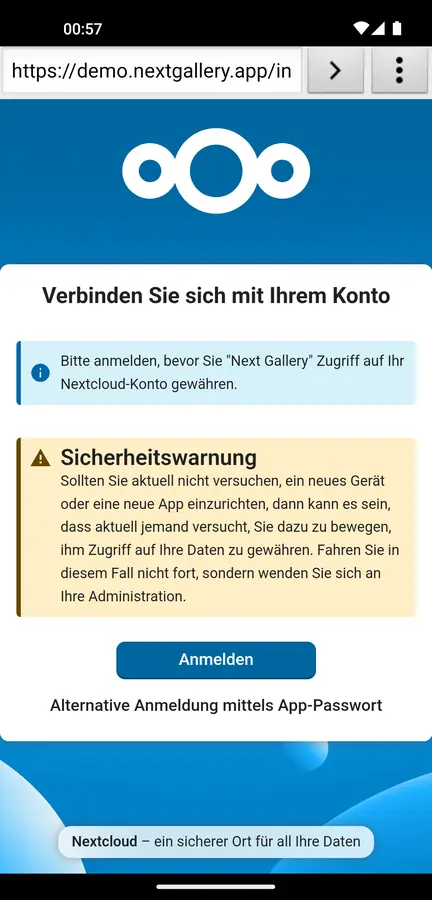
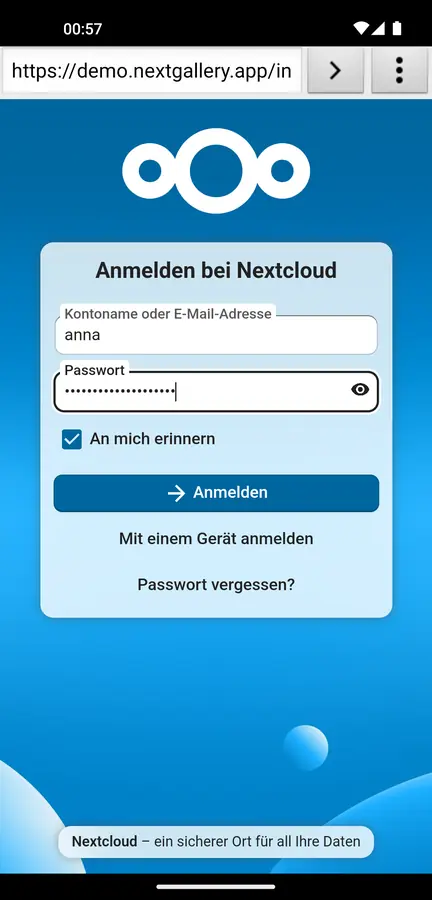
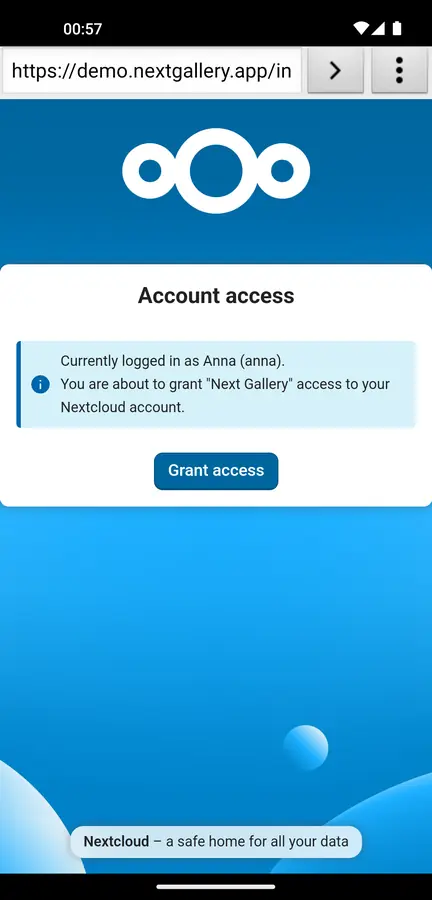
Your browser opens your Nextcloud's login page. Sign in as usual (with two-factor authentication if you use it), then confirm with Grant access. When Nextcloud says the account is connected, go back to Next Gallery with the back button – the app waits up to 20 minutes for you.
3. Account setup assistant
After signing in, the assistant guides you through the setup step by step. Depending on your choices it takes two to five steps; nothing is saved until Done.
Sync – your first cloud
- Step 1 of 3
Usage
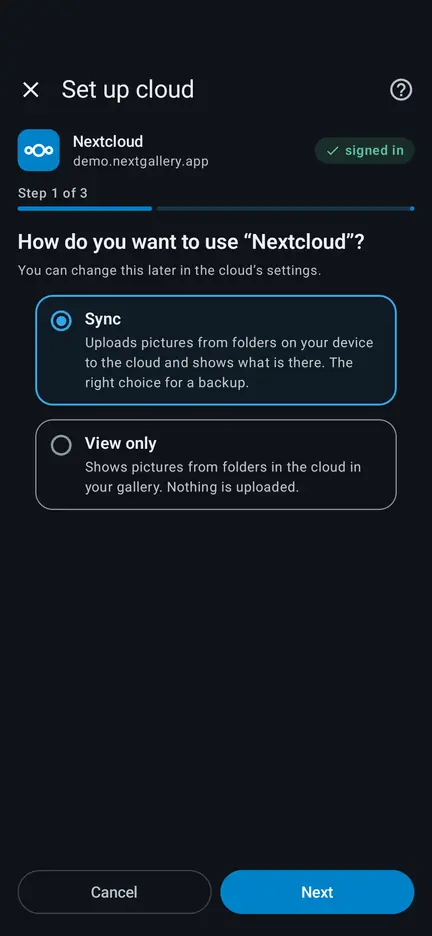
- Choose
Sync.
- Choose
- Step 2 of 3
Folders on this device
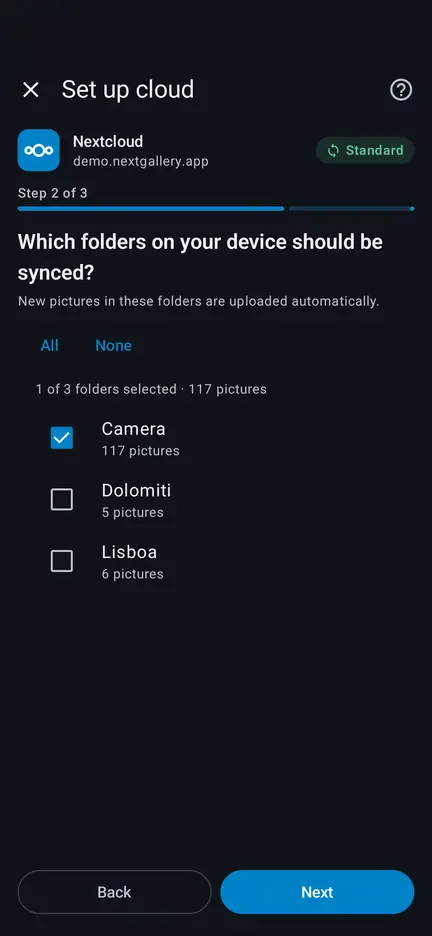
- Tick the folders to back up, e.g. Camera.
- Step 3 of 3
Target folder in the cloud
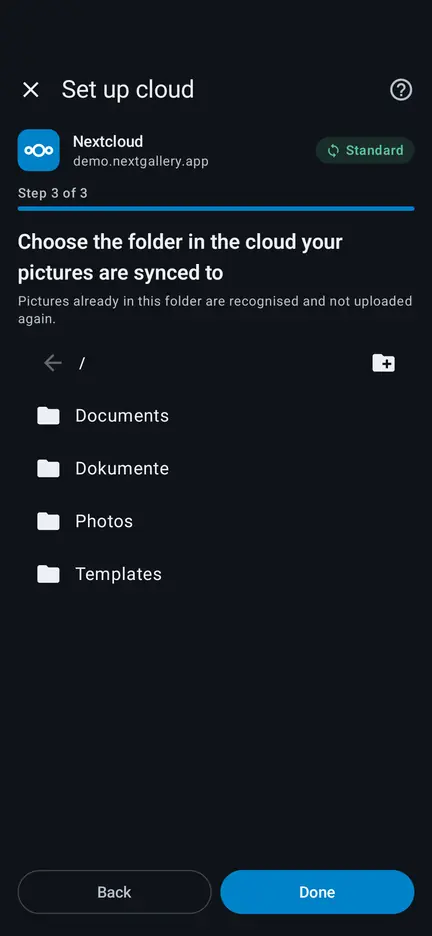
- Pick a folder or create a new one at the top right, e.g.
Photos/NextGallery. - Pictures already there are not uploaded again.
- Pick a folder or create a new one at the top right, e.g.
Done
- Saves and turns on
Sync pictures. - The first scan starts right away.
- Saves and turns on
View only
- Step 1 of 2
Usage
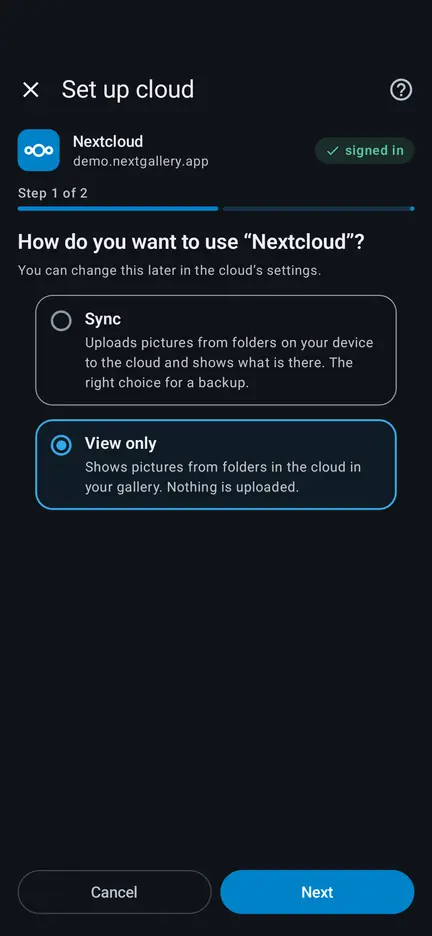
- Choose
View only– nothing is uploaded.
- Choose
- Step 2 of 2
Cloud folders
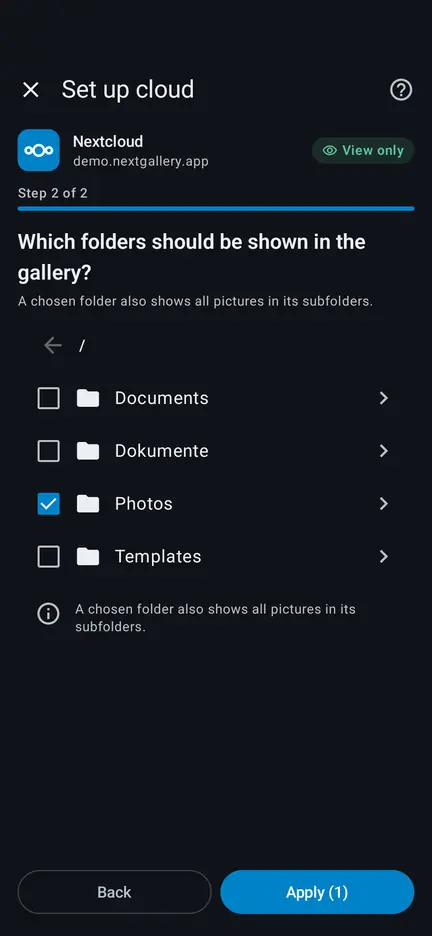
- Tick one or more folders for the gallery.
Done
- The pictures appear on the Photos tab.
Group – another cloud that extends one you have
- Step 1 of 5
Usage
- Choose
Sync.
- Choose
- Step 2 of 5
Standard or Group
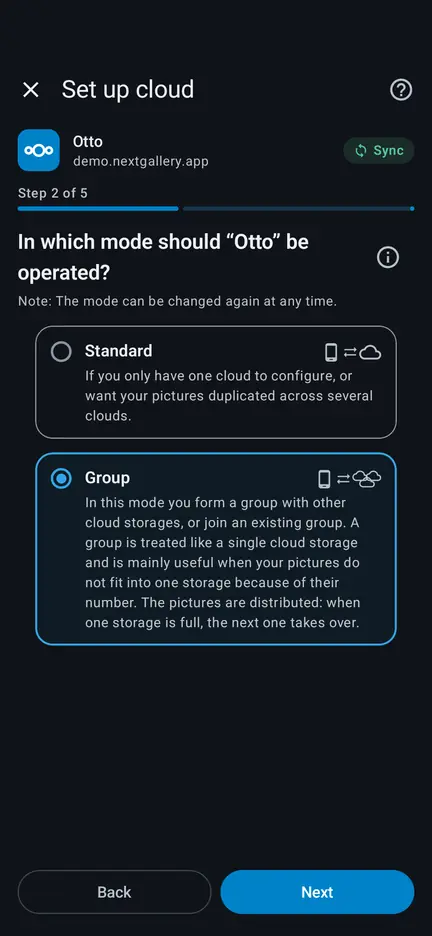
- Choose
Group. ⓘ explains the difference. - With
Standardit goes on as for the first cloud.
- Choose
- Step 3 of 5
Cloud or group
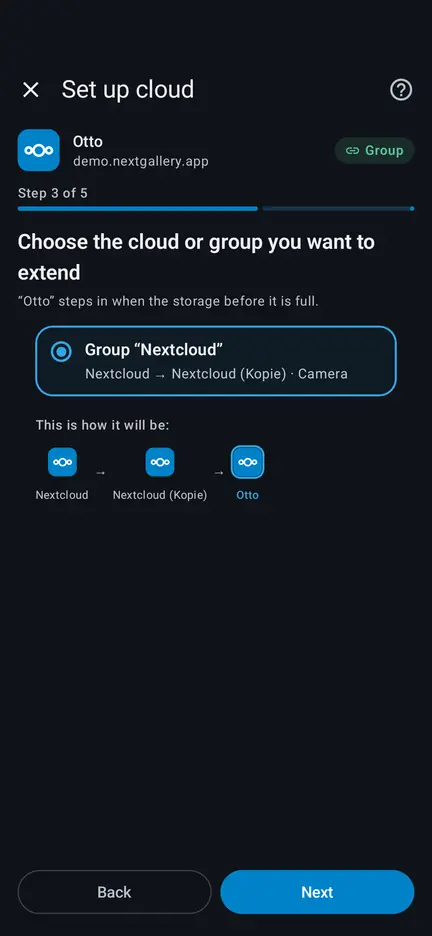
- Choose the cloud or group to extend.
- The new cloud takes over when the storage before it is full.
- Step 4 of 5
Folders on this device
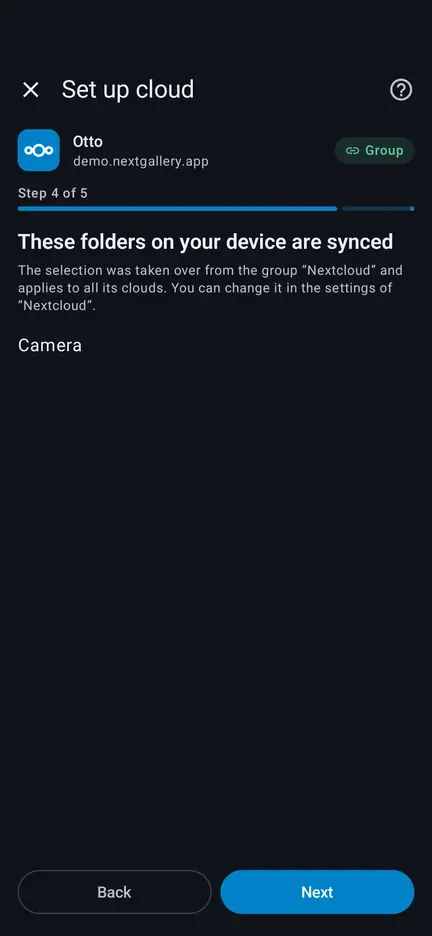
- Taken over from the group – shown here only.
- Step 5 of 5
Target folder in the cloud
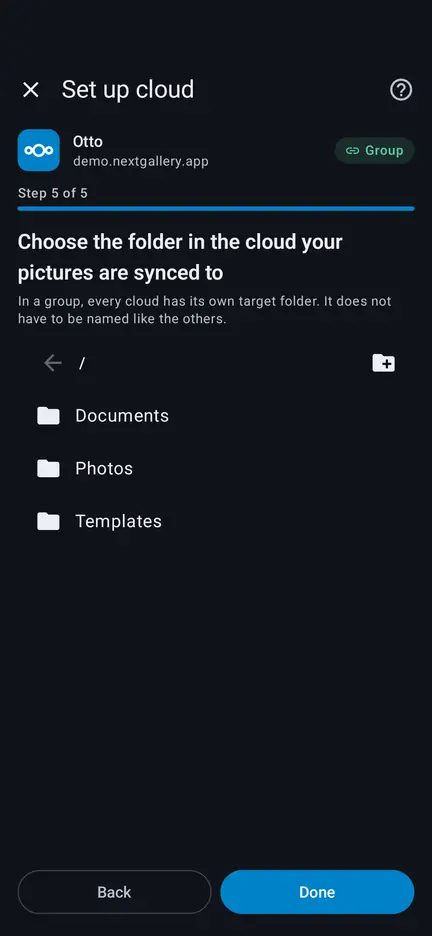
- Each cloud of the group has its own target folder.
Done
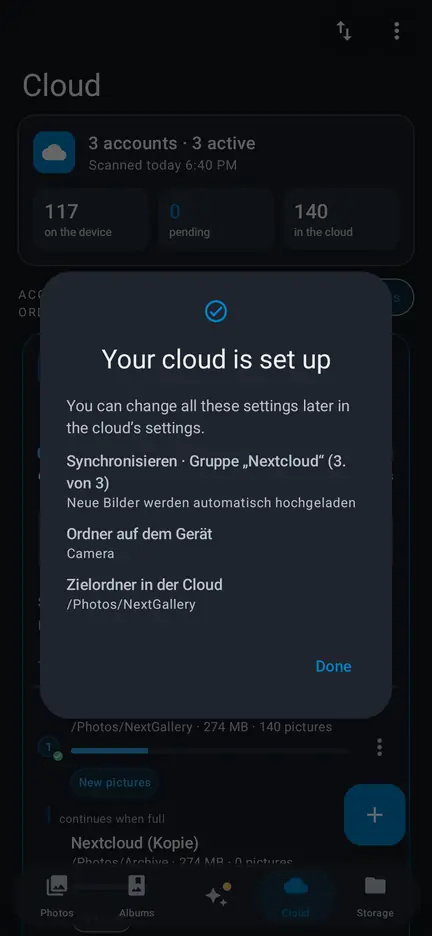
- Saves, turns on
Sync picturesand shows the summary.
- Saves, turns on
Cancel
4. Change the cloud settings
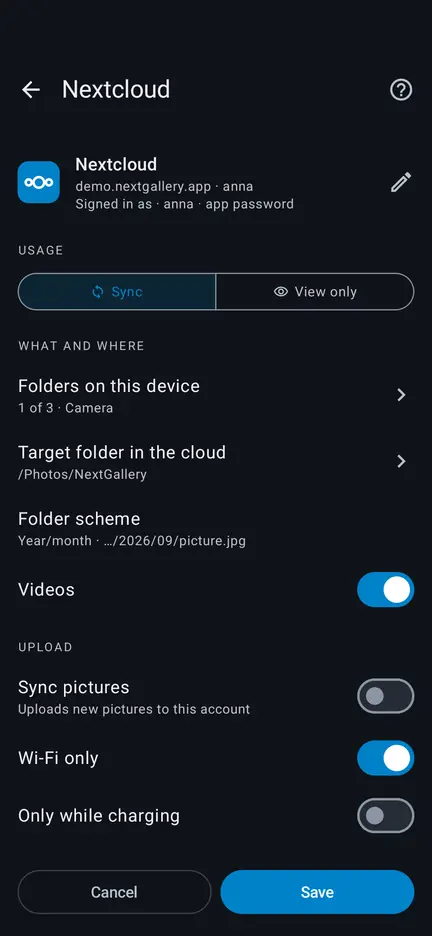
Everything you chose in the assistant can be changed here later. Save applies your changes, Cancel discards them.
Usage
SyncorView only.- With
View only, only theShown cloud foldersfollow below.
Folders on this device
- The folders on your phone whose pictures go to this account.
Target folder in the cloud
- The folder in your Nextcloud the pictures go to.
Folder scheme
Year/month– each picture into a folder like2026/09.Flat– all pictures straight into the target folder.As on the device– each picture into a folder named like its album on the phone, e.g.Holiday.As on the device + Year/month– the same, with2026/09inside, e.g.Holiday/2026/09.
New accounts start with As on the device + Year/month. When you switch an existing account to one of the two device-like schemes, the app asks once whether to sort the pictures already in the cloud into album folders (default: Only new pictures). The sorting runs in the background. If the account's sync is off, the app asks whether to start right away – then it only moves, nothing is uploaded – or with the next sync. Without it, only new uploads, renames, moves and copies follow your albums.
Videos
- Whether videos are uploaded too.
Sync pictures
- Turns uploading on or off.
Wi-Fi only
- Uploads only while the phone is on Wi-Fi.
Only while charging
- Uploads only while the phone is charging.
Storage & group
Storage limit– the most space the app uses in this cloud.- With several accounts: the mode
StandardorGroup, see Several clouds and cloud groups.
Preload thumbnails
- Loads the cloud's thumbnails ahead of time – only while the app is idle.
### Nextcloud albums
On a Nextcloud with the Photos app, Sort into Nextcloud albums appears with the two schemes above and is on by itself: each cloud folder also becomes an album there. The files stay in their folders, so nothing is uploaded again. Pictures that still lie flat or by year/month join an album once they are sorted into album folders.
5. The first scan
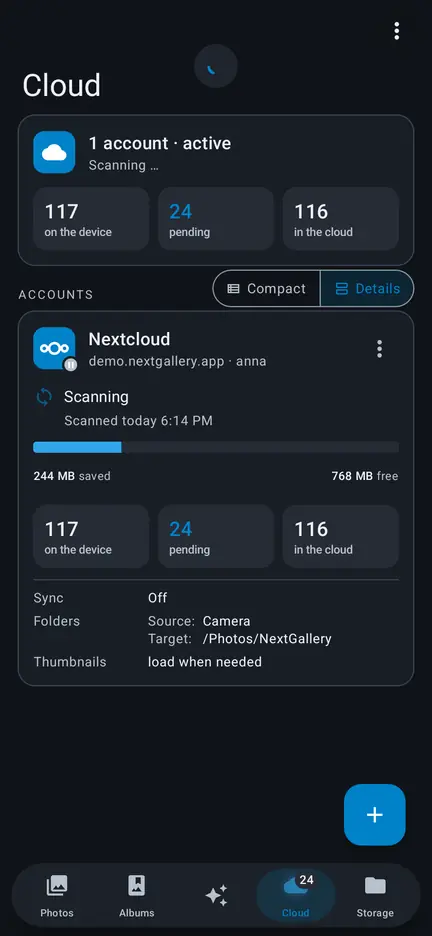
After Done in the assistant – and after every save of the settings – Next Gallery scans your phone and the target folder. It does not upload during this step, it only looks: which pictures are already in the cloud, which are missing, which exist only in the cloud. While it runs, the account card says Scanning next to a pulsing icon; afterwards its last line says when the last scan was (Scanned today 09:58).
When it is done the card shows three numbers: on the device (pictures in the folders on this device), pending (not uploaded yet) and in the cloud. Pictures that are only in the cloud now appear on the Photos tab as well, with a plain cloud on their tile.
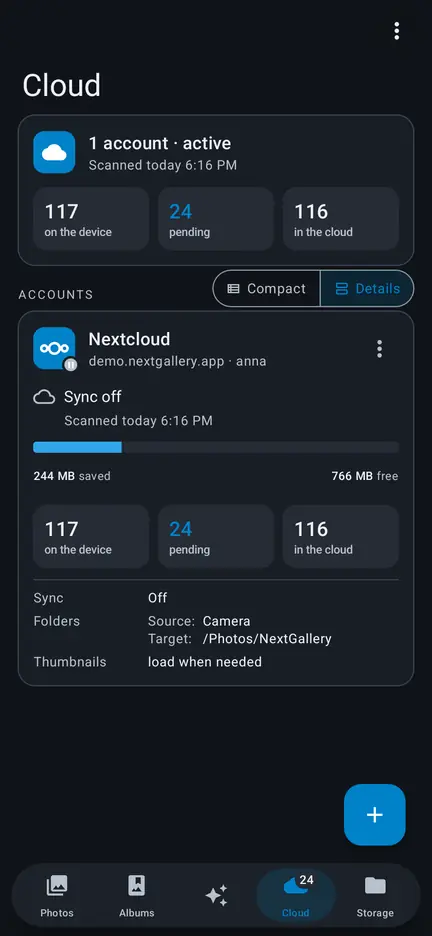
Later Next Gallery scans by itself: once a day in the background, and when you come back to the app and the last scan is older than 60 minutes – after the app restarts, once as soon as the photos are shown. You set both in Settings under Transfers › Cloud scan (Scan automatically, When you return to the app). Pulling down the cloud list scans right away at any time.
6. Uploading
After the first scan Next Gallery uploads what is pending – the assistant has already turned on Sync pictures. The card says how long it will take, and the number on the Cloud tab counts down. From then on, new photos are uploaded automatically (on Wi-Fi only, if you chose so). Once everything is up, the card says All backed up.
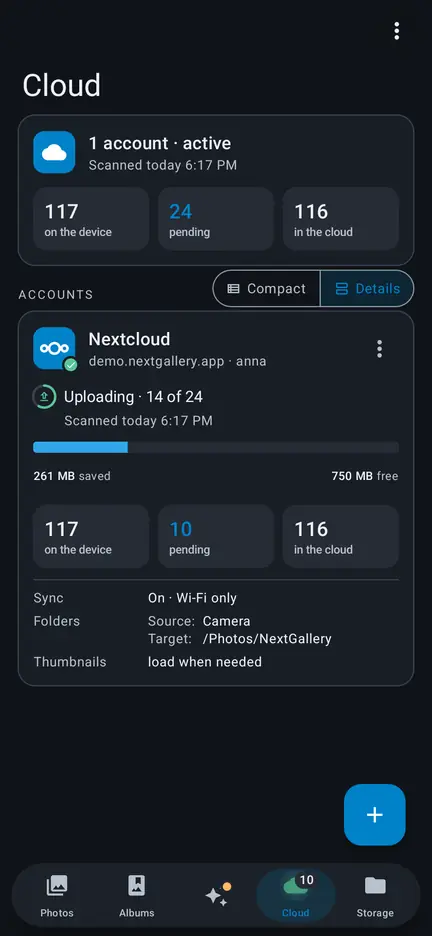
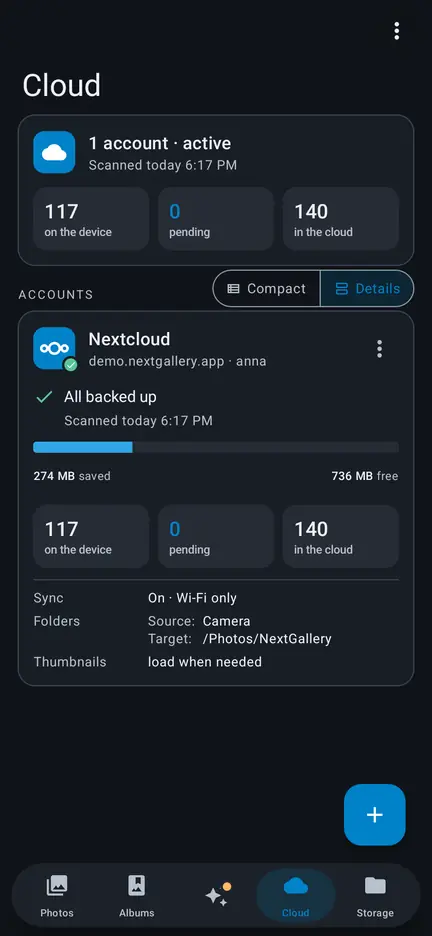
Compact and Details above the accounts switch between one row per account and the whole card; the app remembers your choice.
The icons next to the account's name (in Compact) and in the card's status line (in Details) are the same everywhere:
- a pulsing blue sync icon – the app is scanning (
Scanning); - a green ring around an up arrow – an upload is running, the ring fills with this run's pictures (
Uploading · 5 of 35); - a crossed-out cloud in amber – the cloud was unreachable last time (
Last unreachable);Retryscans again right away; - an amber warning triangle – uploads keep failing; the line names the last error, and the app tries again later by itself.
No icon means all is quiet; Details then says All backed up or how many pictures are pending. The cloud of the Cloud tab at the bottom uses the same colours: it pulses green while an upload runs, and blue while the app scans or loads thumbnails.
Edit, Clone, Deactivate and Remove are in each account's ⋮ menu – in the Compact row as well as on the card in Details.
Later on, Nextcloud lists Next Gallery under Settings → Security → Devices & sessions; removing it there revokes the app's access.
7. Google Drive instead of Nextcloud
Instead of Nextcloud you can connect Google Drive: pick Google Drive in step 1 and tap Sign in with Google. You choose your Google account on the phone and allow access through Google Play services – the app never gets your Google password. On a device without Google Play services this choice is not offered.
Next Gallery only sees the folders and files in your Drive that it created itself. The first time, the folder picker is therefore empty: create a target folder with New folder, for example "Next Gallery". Photos that were in your Drive before do not show in the app. After that it goes on as with Nextcloud – the assistant, the first scan, uploading.
You revoke the access in your Google account under Security → Third-party apps and services.
8. Sign-in expired
If the access is withdrawn – on Nextcloud the app password deleted, on S3 the key replaced, say – the account shows Sign-in expired and you get one notification. The app then stops trying; other accounts and the pictures on your device carry on as usual.
- Tap
Sign in againon the card, or open the account's settings. - Tap
Sign in againin the note and sign in: with the provider for Nextcloud, OneDrive and Google Drive, with a new key for S3. The server and the bucket stay fixed.
It stays the same account: its settings, links and place in a group are kept, and scanning and uploads start at once. Signing in as another user gives Different account and changes nothing – add a new account for that user. Clones with the same sign-in can be renewed in one go.
Delete everywhere cannot remove the copy in an expired account. The delete sheet says so; after the new sign-in the file shows again as a cloud picture.
9. Videos without a thumbnail
If a video shows only a grey tile with a play symbol, Next Gallery got no thumbnail for it. Videos on the phone always have one – Android makes it itself. For a video that is only in the cloud, it comes from the storage:
- Nextcloud makes video thumbnails only if the server is set up for it (see below). No Nextcloud version has this switched on out of the box.
- OneDrive and Google Drive make them themselves, but sometimes need a while after the upload. The thumbnail then appears later by itself.
- S3 storage makes no thumbnails at all; there is currently none for videos there.
Whether your Nextcloud can do it you see in the browser under Files: if it shows a thumbnail for the video, everything is set up. If it shows only an icon, the server still needs the setup.
Setting up Nextcloud. This is done by whoever runs the server; for a hosted Nextcloud, ask your provider. Nextcloud switches video previews off by default because the server has to open every video once with ffmpeg – that costs processing time.
- Install ffmpeg. Nextcloud makes video thumbnails with the program ffmpeg, which has to be on the server – on Debian or Ubuntu for example with
sudo apt install ffmpeg. If Nextcloud runs in a Docker container, ffmpeg has to be inside the container itself. - Switch on video previews. In the file
config/config.php, addOC\Preview\Movieto the listenabledPreviewProviders. Important: once the list is in the file, only what it contains applies. So add the default providers too – in current versionsOC\Preview\PNG,OC\Preview\JPEG,OC\Preview\GIF,OC\Preview\BMP,OC\Preview\XBitmap,OC\Preview\Krita,OC\Preview\WebP,OC\Preview\AVIF,OC\Preview\MarkDown,OC\Preview\TXT,OC\Preview\OpenDocument– or the thumbnails of your photos are gone afterwards. For iPhone photos, addOC\Preview\HEIC(needs Imagick with HEIC support). - Only if needed: the path to ffmpeg. If Nextcloud doesn't find ffmpeg by itself, set
preview_ffmpeg_pathto its path, for example/usr/bin/ffmpeg. - Check. Open a video under Files in the browser – it should now have a thumbnail. Next Gallery asks again the next time it shows the video, at the latest after the app is restarted.
The official description is in the Nextcloud manual: Previews configuration and the list of all providers under enabledPreviewProviders.