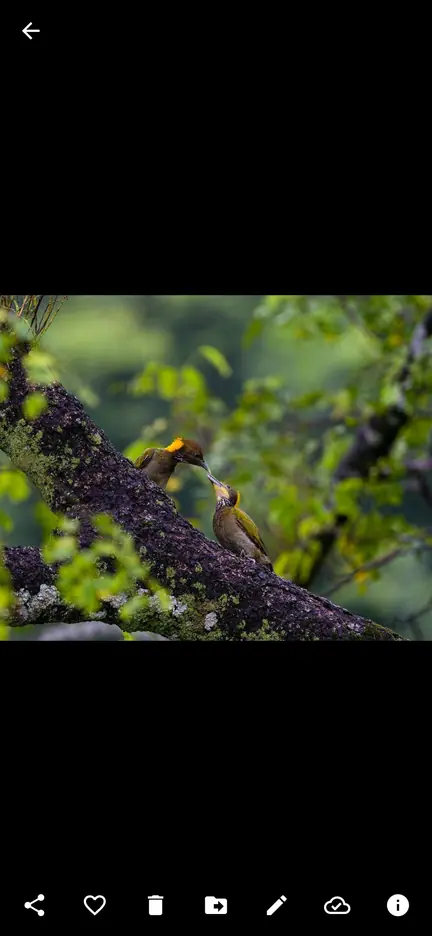
Next Gallery shows the photos on your phone and the photos in your cloud in one place. This page explains the parts of the app you will meet every day.
The first start
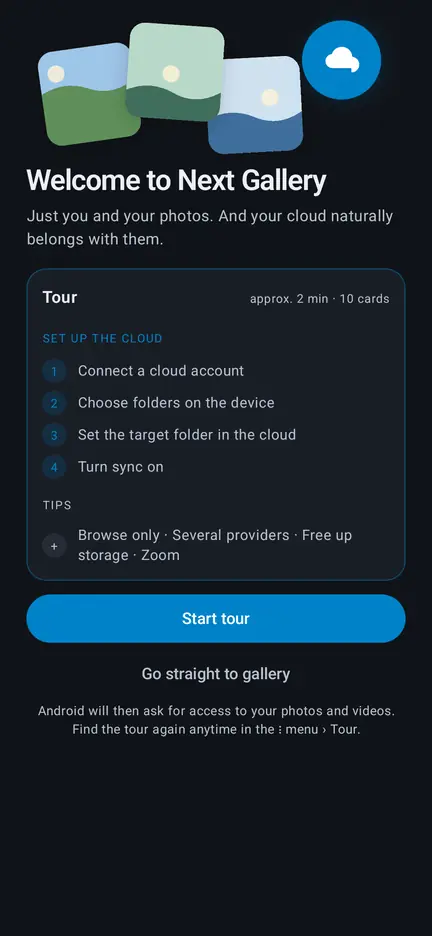
On the very first start Next Gallery welcomes you with a short overview. Start tour walks you through setting up a cloud in ten short cards; Go straight to gallery skips it. Android then asks for access to your photos and videos – Next Gallery needs it to show them.
The five tabs
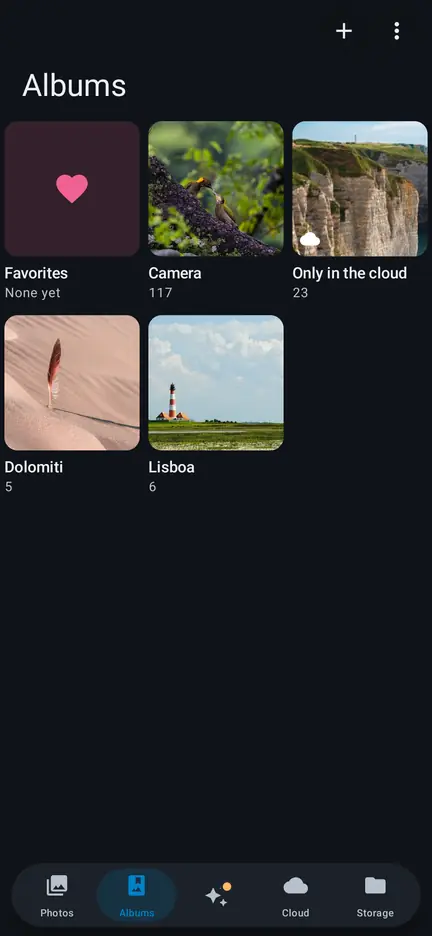
The bar at the bottom switches between the five parts of the app:
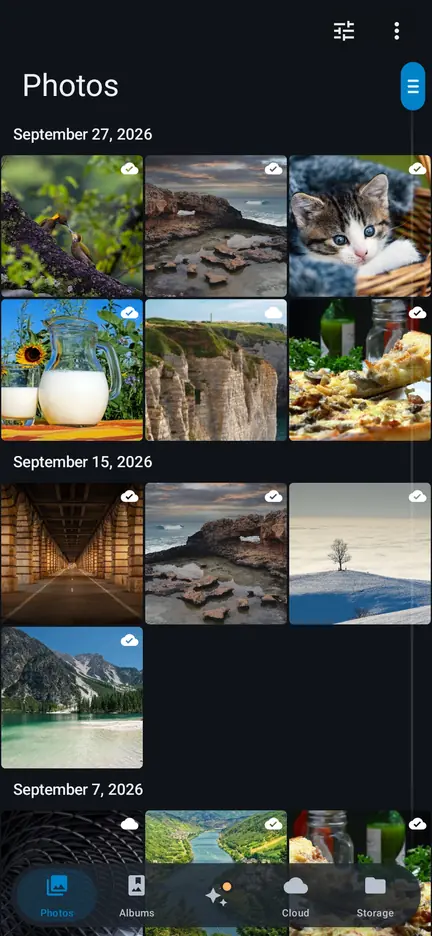
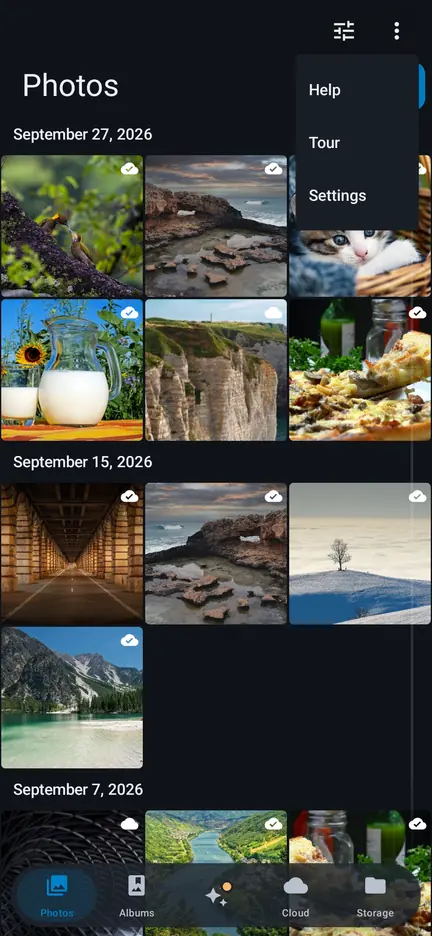
- Photos – every picture, newest first, grouped by day. Pictures from the phone and from the cloud sit side by side. See The Photos tab.
- Albums – the folders on your phone, plus Favorites. See Albums and folders.
- Memories – every day a reel of your camera and cloud pictures from this day in earlier years. See Memories.
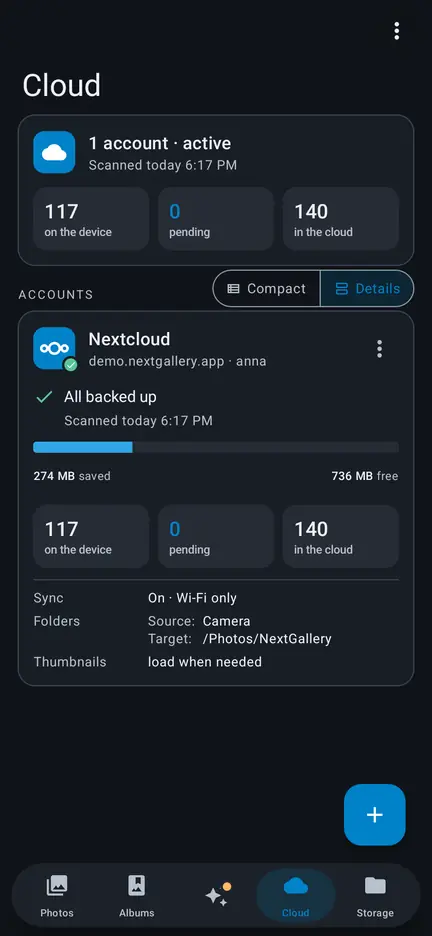
- Cloud – your cloud accounts: what is backed up, what is still waiting, what the app is doing right now. A number on the tab counts the pictures still waiting for upload. See Connecting Nextcloud.
- Storage – how much space your photos take and how much you can free up. See Storage and space.
What the small cloud on a picture means
- Cloud with a check mark – the picture is on your phone and safely in the cloud.
- Plain cloud – the picture is only in the cloud. Next Gallery shows a thumbnail from your server and loads the original when you need it.
- No cloud – the picture is only on your phone (for example because it has not been uploaded yet).
Menu and filter
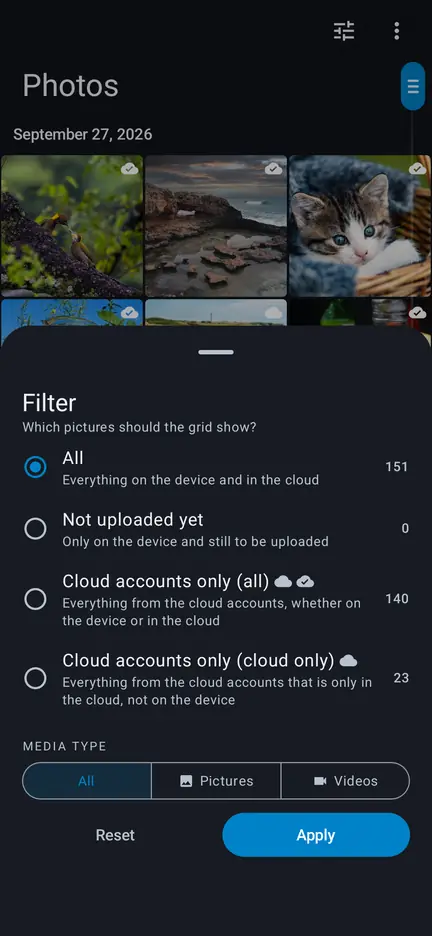
The ⋮ button at the top right opens the menu with Tour and Settings. On the Photos tab, the button next to it opens the Filter: show everything, only pictures not uploaded yet (Not uploaded yet), or only what is in your cloud accounts – with or without the pictures that are also on the phone. A filter can also limit the grid to pictures or videos.
The viewer
Tap a picture to open it full screen. Swipe left and right to move to the next picture, pinch to zoom. The bar at the bottom has the same buttons as a selection on the Photos tab – Share, Favorite, Delete, Copy or move to album – then Edit, the cloud status and Details. More in The Photos tab and Working with pictures.