An album in Next Gallery is a folder on your phone: Camera is where your camera saves, a messenger has its own folder, and every album you create is a new folder. That is also why other gallery apps and your computer see the same albums.
The Albums tab
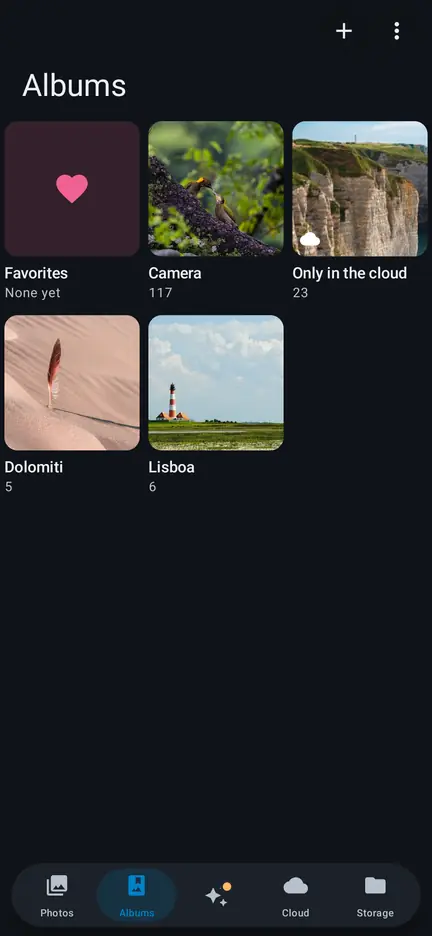
- Favorites always comes first – every picture you marked as favorite.
- Then your folders, each with its newest picture and the number of pictures in it.
- An album keeps its name and its place when its pictures are only in the cloud – for example after you freed space or deleted the files on the phone. Pictures that never belonged to a folder known to the app are collected in an album of their own.
+ at the top creates a new album. Tap an album to open it; Add photos at the top fills it with pictures from the grid.

Manage albums
Press and hold an album to select it (tap more albums to add them). The bar at the top offers:
Share– every picture of the selected albums.Copy into new album– copies all their pictures into a new folder; cloud photos are loaded and copied as real files.Rename– exactly one album. The files move to the folder with the new name; cloud accounts that back up this folder follow the new name, nothing is uploaded again.Delete– with the same choice as for pictures: from the phone, from the cloud, or both.
Favorites and the cloud-only album cannot be selected.

Albums in the cloud
If an account's folder scheme is As on the device (or + Year/month), the cloud follows your albums: renaming an album renames its folder there, moving pictures into another album moves their cloud files, and copying them puts a copy into that album's cloud folder. This runs in the background together with the uploads; an account with syncing off waits until it is on again. The same picture can then exist in two cloud folders – the Photos tab shows it twice.
Showing albums again after a reinstall
After a reinstall or on a new phone the app no longer knows your albums. It then reads them from the cloud paths. This is how they come back:
- The pictures were backed up with
As on the device(or+ Year/month). WithYear/monthorFlatthere is no album name in the path. - You set up the account with
Syncand leave the folder scheme onAs on the device(or+ Year/month). That is the default. Target folder in the cloudis the same folder as before – the one that holds the album folders, not a single album.
In the setup wizard you have to choose at least one folder on the device, and the wizard turns Sync pictures on, so that folder is uploaded. Nothing is uploaded for the albums themselves. So choose just a small folder there, not All. Afterwards you can turn Sync pictures off in the account's settings and choose None under Folders on the device.
Which albums go to the cloud
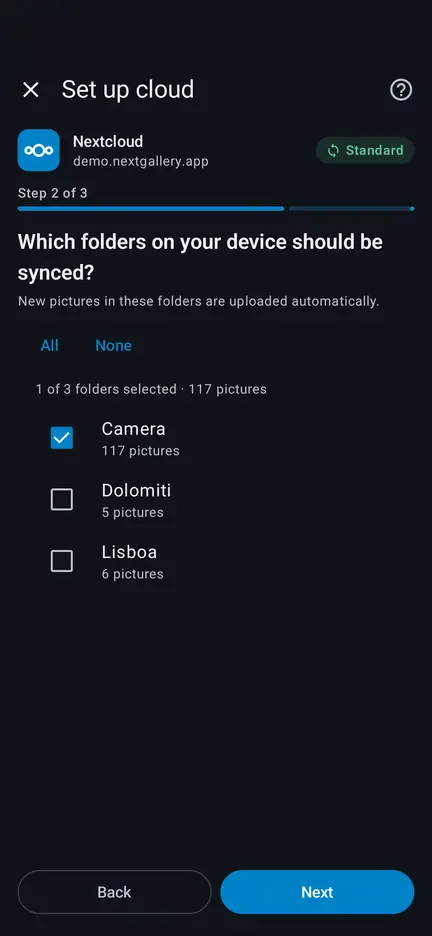
Each cloud account backs up only the folders you give it. In the account's settings, Folders on this device lists every folder with its number of pictures; All and None at the top select everything or nothing. A new folder is not backed up until you add it.
Frequently asked questions
Why do I see a picture twice in an album?
The same picture is then on your phone and in the cloud, but the app has not linked the two. It links a picture only if its folder is selected under Folders on the device for that account. Anything else counts as a separate copy, and you see both tiles. This happens, for example, when you set up an existing cloud account on a phone that still has the folder, but the folder is not selected.
To fix it, select the folder under Folders on the device. At the next comparison the app links pictures with the same name and size. With As on the device, the cloud file must also lie in that album's folder. With View only the app never links: both tiles stay.
Why can't I delete a picture or album?
The app does not change pictures and albums that come only from View only accounts: you cannot delete, rotate or rename them, and such albums are no target for new pictures. Copying into your own album works. If a picture is also on a Sync account, it is deleted only there. If you rotate it, only that copy is rotated; the copy from the View only account stays as it is and gets a tile of its own.