Everything you do with a picture works the same for photos on your phone and photos in your cloud. For a cloud photo, Next Gallery loads the original first where it is needed.
Select several pictures
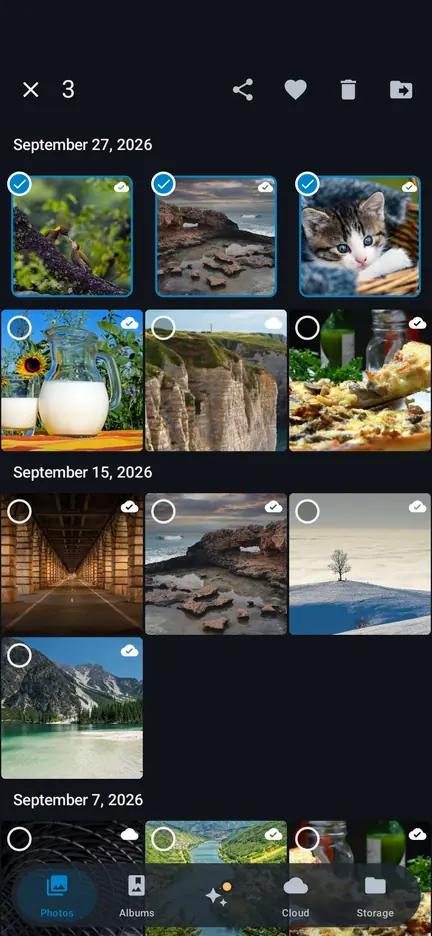
Press and hold a picture to start a selection, then tap more pictures to add them (tap again to remove one). The bar at the top shows how many are selected and offers:
Share– sends the pictures to another app.Favorite– marks them; they then appear in the Favorites album. A picture only in the cloud is downloaded for this, into the folderCloud Favorites.Delete– see below.Copy or move to album– see below.
The ✕ at the top left ends the selection.
Delete – from the phone, from the cloud, or both
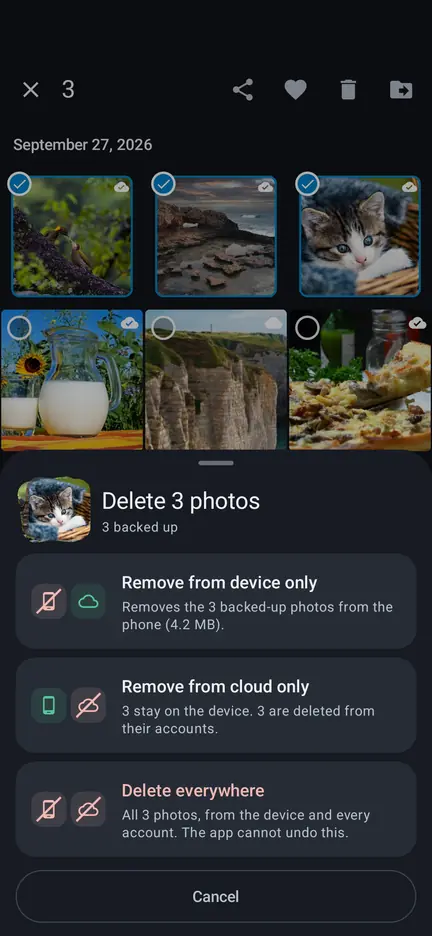
Because a picture can be in several places, Next Gallery asks where it should go:
Remove from device only– frees space on the phone; the backed-up copy stays in the cloud and the picture stays visible in the gallery.Remove from cloud only– the picture stays on the phone and is deleted from its cloud accounts.Delete everywhere– from the phone and from every account. This cannot be undone.
Android then asks for its own confirmation before anything on the phone is deleted. A picture that is only on the phone skips the choice and goes straight to Android's dialog.
Copy or move into an album
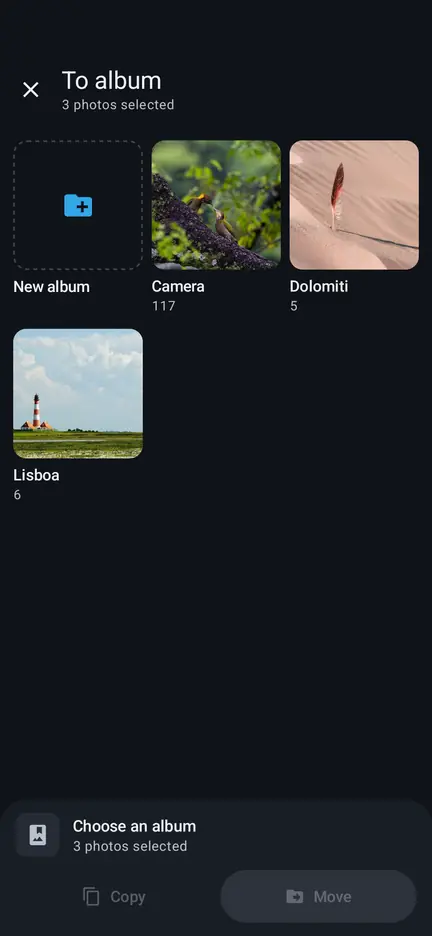
Copy or move to album opens the album list. Pick an album – or New album – and then Copy or Move at the bottom. Cloud photos are loaded and copied as real files.
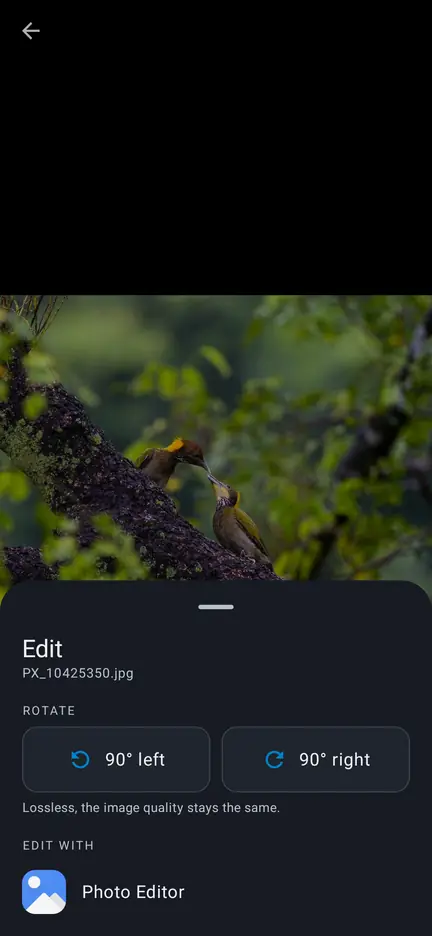
Rotate and edit
In the viewer, Edit opens a sheet: Rotate turns the picture by 90° without losing quality (only the orientation is changed), and Edit with lists the photo editors installed on your phone. After a rotation, the picture's copies in the cloud are replaced too. What an editor app saves, and where, is up to that app.